Using Express Entry
Home > Managing Banking Information > Managing Bank Account Information > Using Express Entry
Using Express Entry
With Bookkeeper's Express Entry, you can enter bank account transactions quickly and easily. You can enter straight deposits, checks and cash transactions in a single screen one line at a time. As transactions are entered, a running total of Expenses and Deposits are shown as well as how the net transaction amount will affect the currently selected bank account.
To use Express Entry:
- Select the bank account to add entries for. The current balance for that account will be displayed. The Net Transactions field will be automatically updated as transactions are entered.
- Begin entering line items. The Type of transaction can either be a Deposit or an Expense. To enter a new line, you can hit the Enter key or click on the Add Line Item button in the upper right side of the screen.
- For Deposit transaction types:
- The Vendor / Customer field will list customers.
- Customer selection is not required.
- For Expense transactions:
- The Vendor / Customer field will show the list of Vendors.
- Vendor is required for Expense transactions.
- If the vendor selected has a default account defined, it will be automatically selected in the Account list.
- If the vendor selected has a default memo defined, it will be set automatically in the Comment field.
- The Check Number field will be available and can be used if necessary. If a check number is entered, the check number must not be already used.
- If you need to add a new GL Account, Customer or Vendor, you can click on the link in the header to jump to the appropriate maintenace screen.
- The Reconciled check box, if checked, will mark the item as reconciled and will not be included in the bank reconciliation process.
- You can enter a comment for the transaction by clicking on the note icon:
 . When clicked, a popup will be displayed where you can enter a comment:
 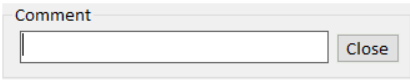 . Click the Close button to save the comment with the transaction.
 - If you need to delete a transaction, click the red X icon at the end of the line:

As transactions are entered, subtotals for Deposits and Expenses are shown at the bottom of the Amount column.
If the Add new vendors automatically or Add new customers automatically if you type in an value that is not in the dropdown, Brass Jacks Bookkeeper will automatically create the vendor or customer and add it to the list.
It is also possible to import transactions using theBrass Jacks Bookkeeper File Import process. Before importing a file, vendors, customers and accounts need to be already defined in Brass Jacks Bookkeeper so they can be matched during the import process.