Departments in Payroll Processing
Home > Managing Departments > Departments in Payroll Processing
Departments in Payroll Processing (for Advanced Payroll only)
When processing payroll, you can choose to allocate payroll transactions to a department based on an allocation percentage set for each employee and contractor. Based on these percentages, wages, taxes and deductions computed during payroll run will be allocated to the specified department based on the percentage setup for that department for the employee.
Setup For Payroll Cycle
First, you need to indicate which payroll cycle you would want to use department level allocations for. When defining payroll cycles for the company, there is a new option to indicate whether this cycle will use department allocation:
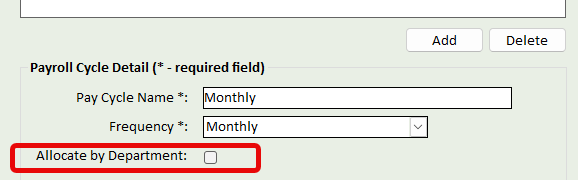
This indicator is only for the selected payroll cycle. You can have other payroll cycles that do not use department allocation.
Note: if you have not done so at this point, create the departments you wish to use in the payroll processing. See Managing Departments
Setup For Employees / Contractors
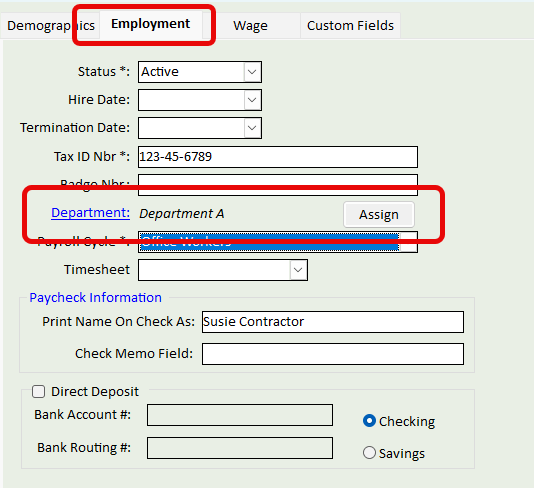
Once departments have been created and the payroll cycle flagged, you will need to select which departments are applicable to which employees and contractors. This done in the respecitve setup for employees and contractors. In the Employment tab, there will be an option to select the Department(s). You can select a single department or multiple departments. Note that if the payroll cycle is flagged as allocating by department, then at least one department is required to be selected for the employee / contractor.
To access the list of Departments, click on the Department link.
Click the Assign button to allocate the percentage this employee / contractor will be allocated to which department:
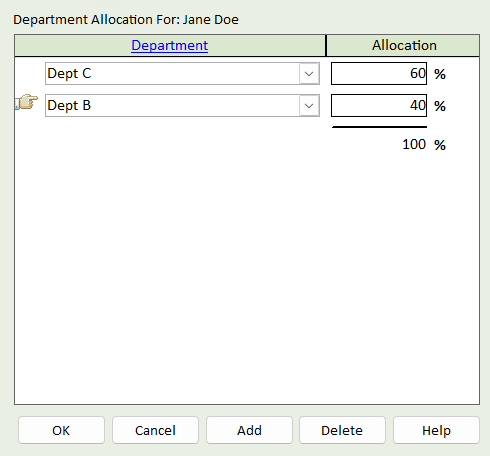
The total allocation must equal 100%. This setting will calculate wages, taxes and deductions at 60% fro Dept C and 40% for Dept B
If there is only one department selected, it's name will appear directly:
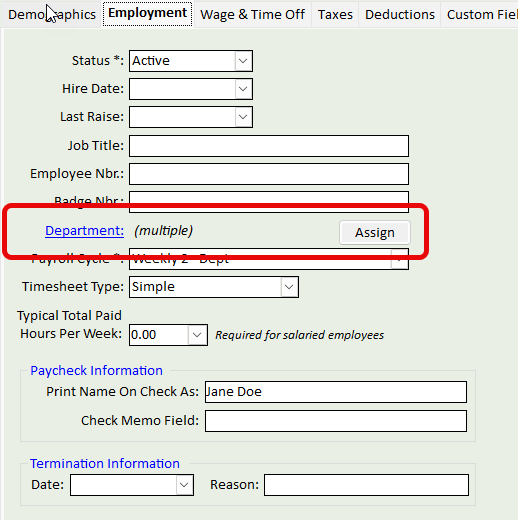
If multiple departments are selected, then the word (multiple) will appear:
Performing a Payroll Run
When running payroll, in the Payroll Summary wizard page, there will be an icon visible when that payroll cycle is using department allocation:

Clicking this icon will allow you to adjust the default department allocation percentage for this person for this payroll run. Continue with the rest of the payroll wizard to complete the payroll process. The allocation of wage, taxes and deductions all happen behind the scenes.
Timesheets
When entering time in a timesheet, you can select the department on the same line for each type of timesheet:
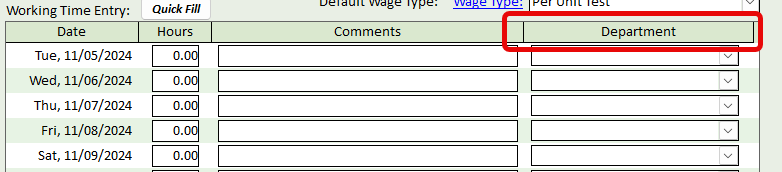
When the timesheets are imported, the hours will be totaled by department and the allocation percentage will be adjusted accordingly in the Payroll Summary page. The percentages calculated can be viewed by clicking on the icon (noted above) and adjusted in that screen if necessary.